
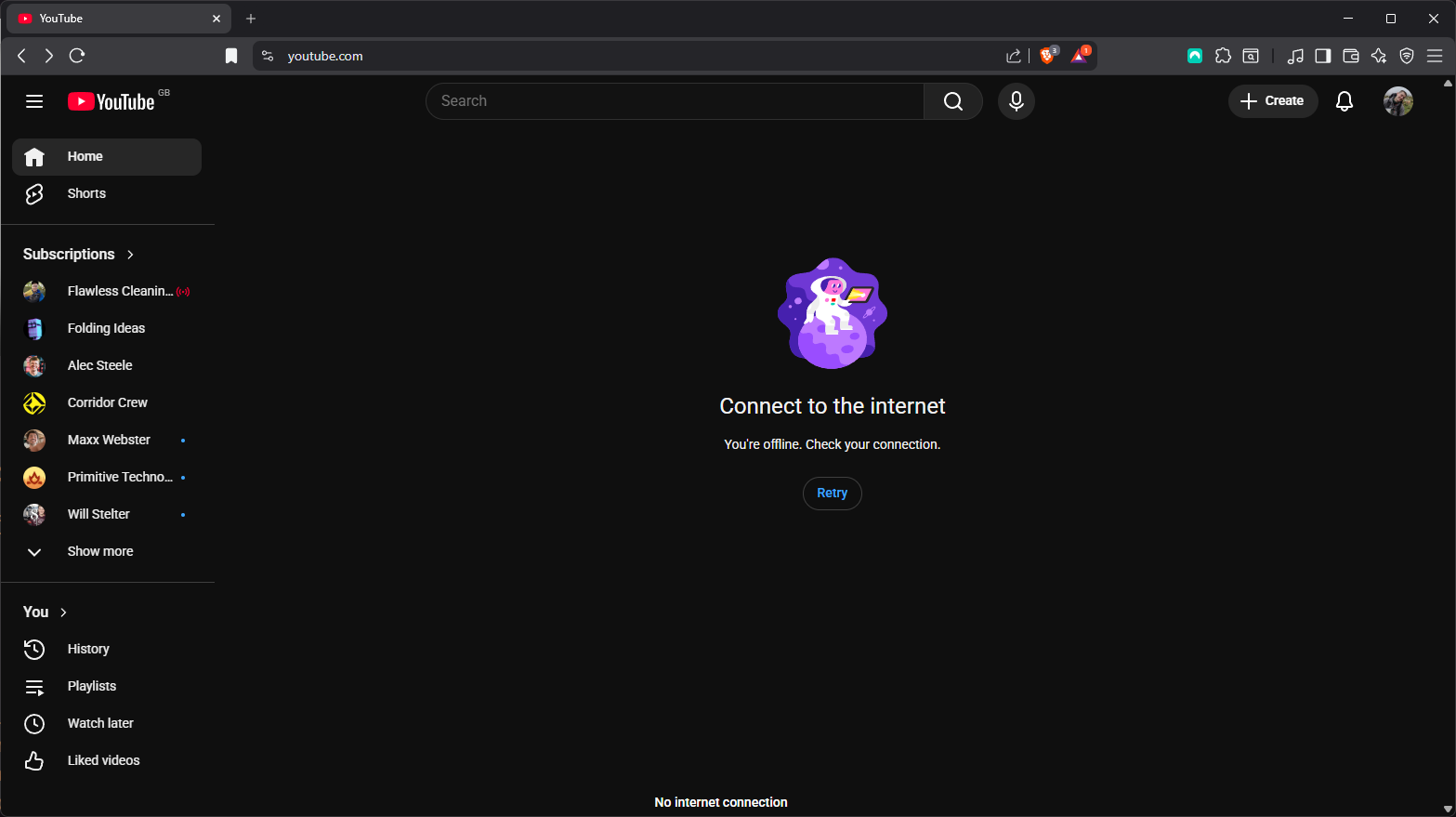
My crusade continues to shape my machines to better suit the life I want to live. Building on top of my previous success with scheduling actions (https://kylebignell.co.uk/posts/escaping-the-late-night-doomscroll/), this time I wanted to completely block certain websites during work hours to help curb my distractions.
The core of this idea is built around the /etc/hosts file, a handy little file that tells your computer where to go looking for the server of a website you want to visit. We can make use of this to point our computer towards non-existent servers when we want to focus.
The hosts file is the first place your PC will check to find an IP address for a website… If the hosts file tells your computer to find a web address at an IP address that won’t connect—like 0.0.0.0—it blocks access to the website.
https://www.howtogeek.com/784196/how-to-edit-the-hosts-file-on-windows-10-or-11/
Below I have covered the software and process I used that you can try for yourself.
Goal
This is the goal. When I decide it’s time for a break and I go to one of my favourite distractions I will arrive to find it no longer functional. Breaks are healthy, and essential for me at least, but I want to stop a 5 minute break turning into a 15 minute YouTube shorts binge.
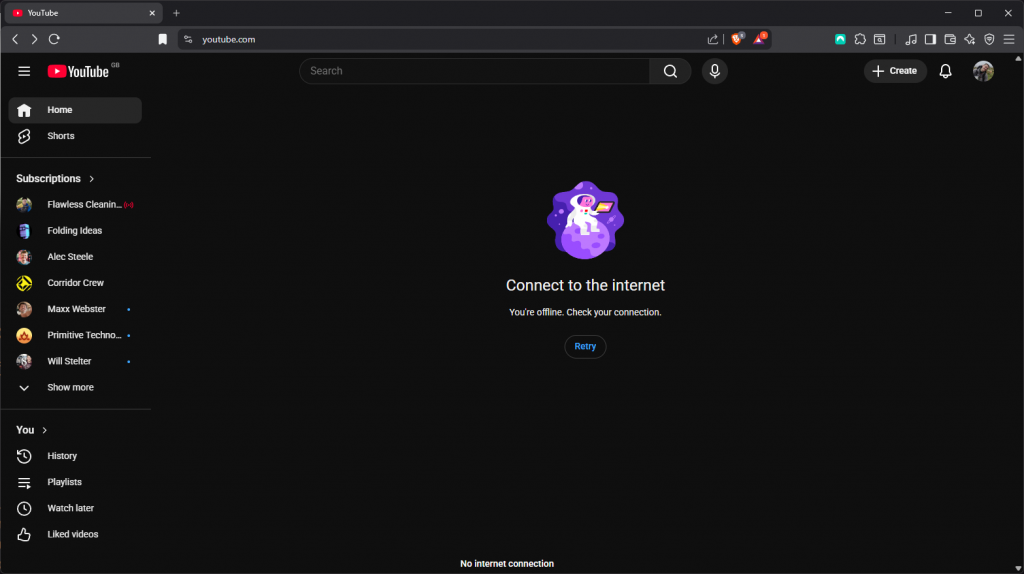
IMPORTANT – Browser caching
Browsers can take up to 1 minute for their DNS cache to expire. You may need to wait for 1 minute before your blocking/unblocking takes effect in a browser.
Prerequisites
hostctl – https://guumaster.github.io/hostctl/
Because it is a tedious task to handle the
https://guumaster.github.io/hostctl/hostsfile by editing manually. With this tool you can automate some aspects to do it cleaner and quick.
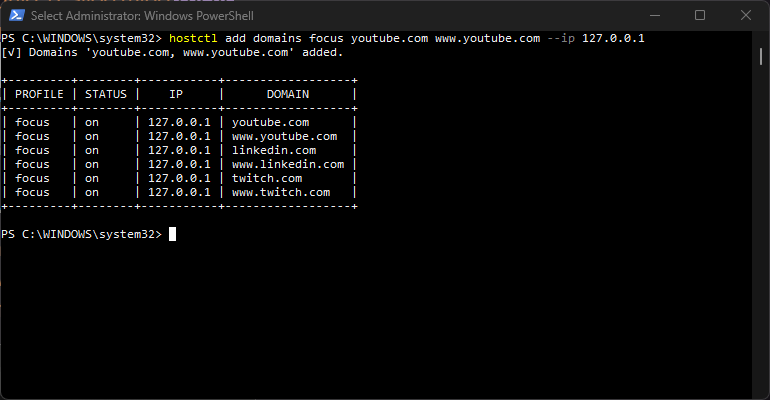
hostctl provides us with a convenient way to update and manage our hosts file which we will use to block/unblock sites. This is done through profiles as you can see below. All addresses I want to block are grouped into a focus profile.
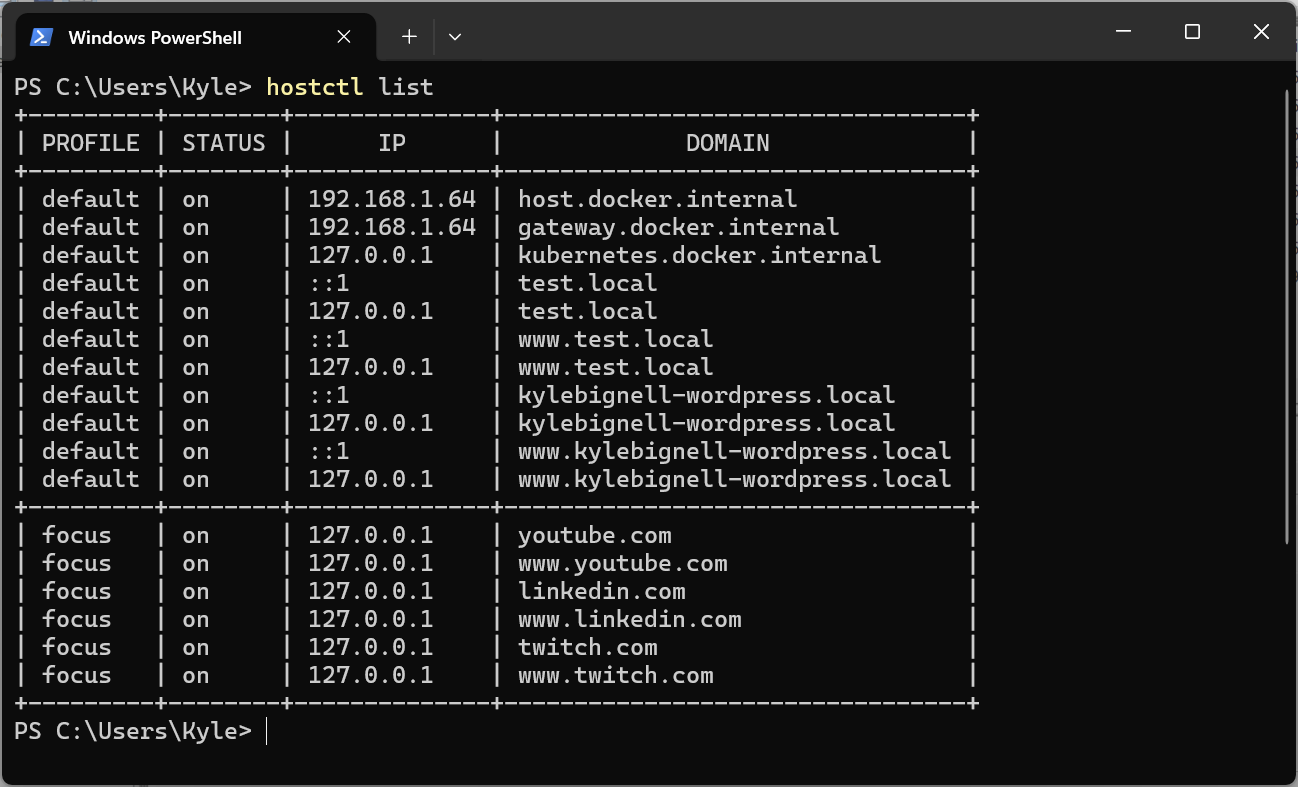
I installed it with Scoop but there are other options available:
https://guumaster.github.io/hostctl/docs/installation
AutoHotkey – https://www.autohotkey.com
The ultimate automation scripting language for Windows.
https://www.autohotkey.com
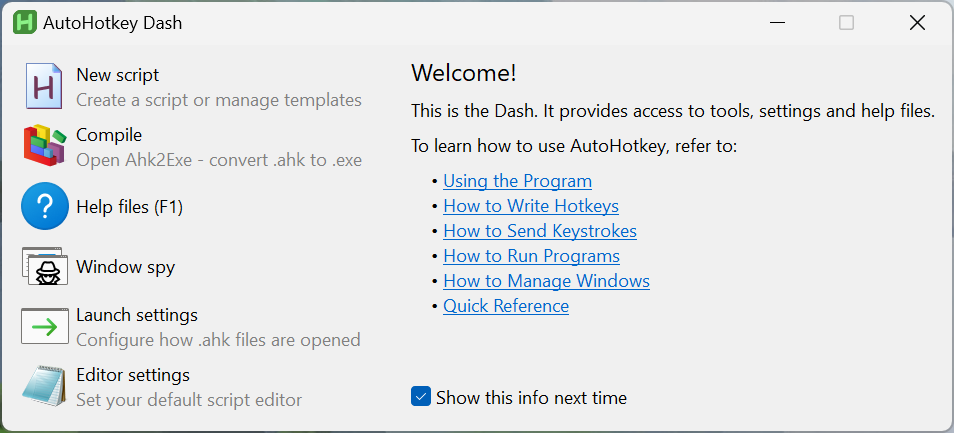
AutoHotkey is a powerful automation tool that allows us to create scripts for automating tasks. We will be creating two, one to enable the hostctl focus profile and another to disable it.
Task Scheduler – Available on Windows
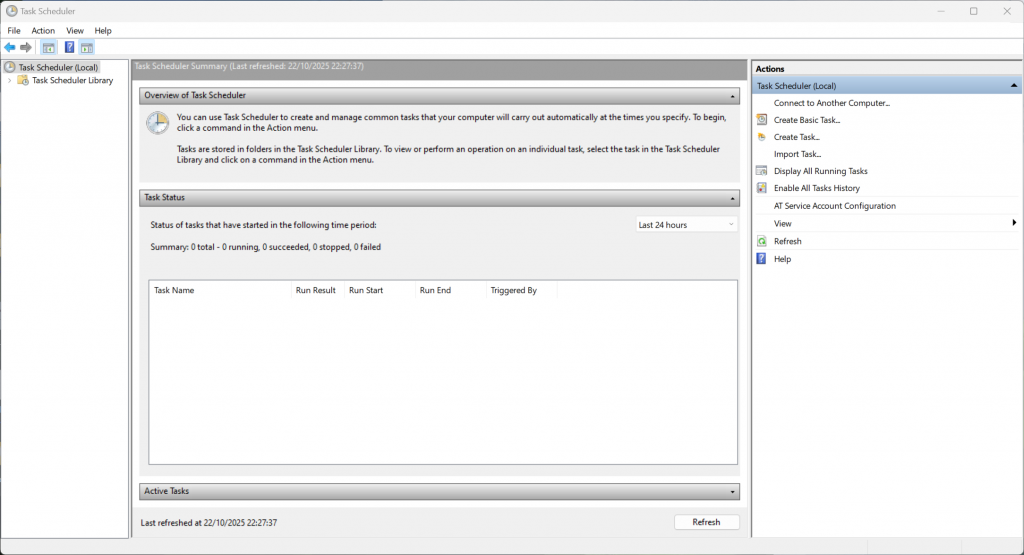
Task Scheduler is the final piece of software in our automation chain. It is going to call the AutoHotkey script when we tell it to.
Task Scheduler is a piece of Windows software (it’s probably already scheduling a bunch of tasks you aren’t aware of). Just open the start menu, search for Task Scheduler and it should be ready for you.
Setup
1.Setup hostctl profile
Our first building block is the hostctl profile. I called mine focus but you can call it anything you want, just make sure you use the same name at later stages. Use the add command to build the profile, making sure the websites you add point to something sensible like 127.0.0.1 (your own computer).
hostctl add domains focus youtube.com www.youtube.com --ip 127.0.0.1This will need to be done as administrator so make sure you run your terminal with elevated privileges.
2. Automate with AutoHotkey script
Next we need to setup two AutoHotkey scripts that will handle calling hostctl for us. We start by creating a new V2 script as follows.
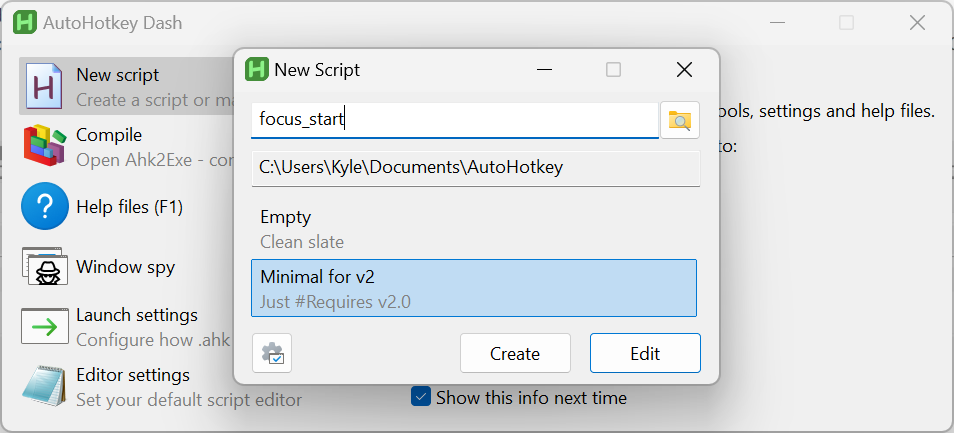
Then we can add the code that will call hostctl.
#Requires AutoHotkey v2.0

try
    Run "hostctl enable focus"
catch
    MsgBox A_LastError
In order to allow us to execute that script directly as its own application we’re going to compile it to an .exe using AutoHotkey’s Compile functionality.
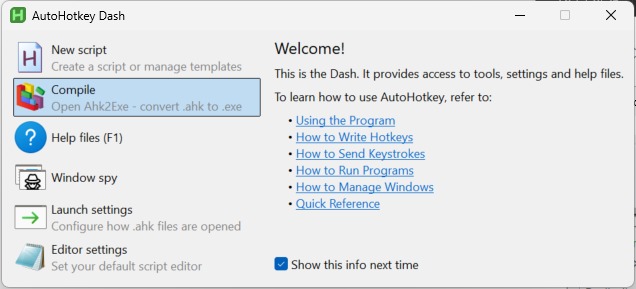
We simply select our .ahk file and hit convert.
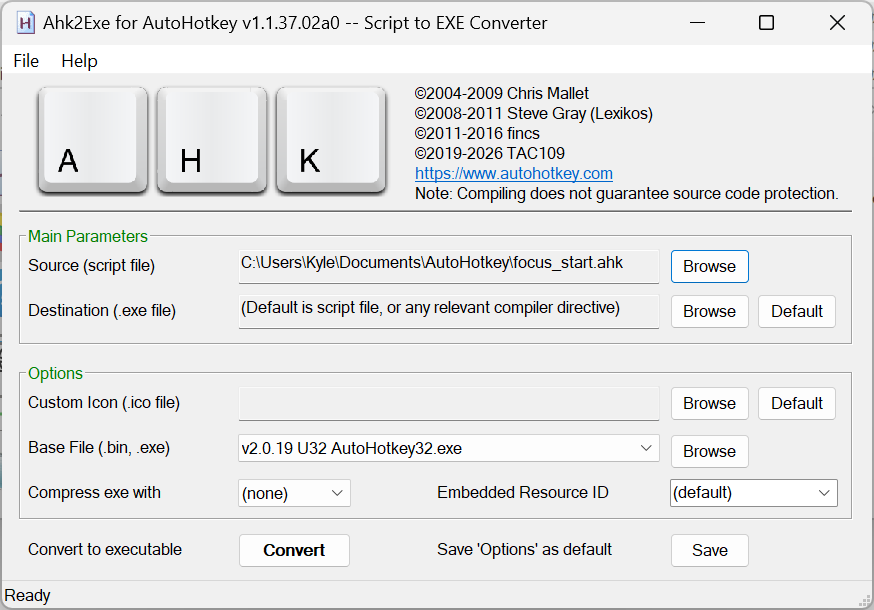
Now repeat the process for the inverse using the following code
#Requires AutoHotkey v2.0

try
    Run "hostctl disable focus"
catch
    MsgBox A_LastError
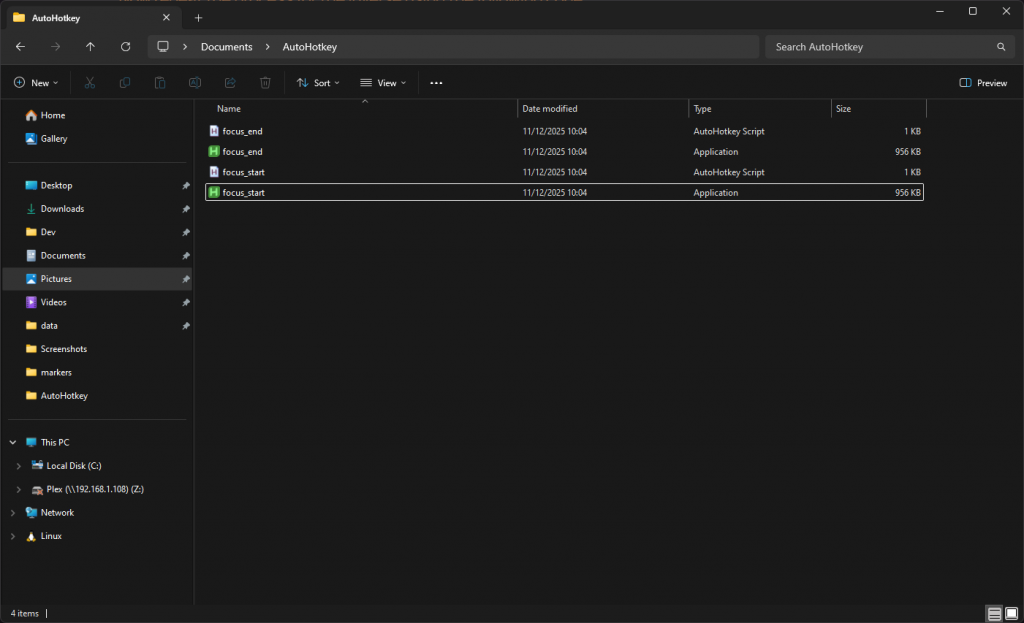
Which leaves us with our original .ahk scripts and the new .exes. You can run both now to double check they work.
3. Schedule with Task Scheduler
Now the final thing to do is to schedule our new scripts to run when we want to start and end our focus period. It’s fairly self explanatory with Task Scheduler. You setup a new basic task, pick when you want it to run (I set mine to start at 10am every day), and then tell it which program to execute. I had to tick the box to allow the script to run with highest privileges in order for it to work for me. The video below is from the schedule greyscale project but it covers the same points.
Once that’s setup you can try manually triggering the task with the option in the sidebar. If everything is setup correctly your hosts file will update with the new rules!
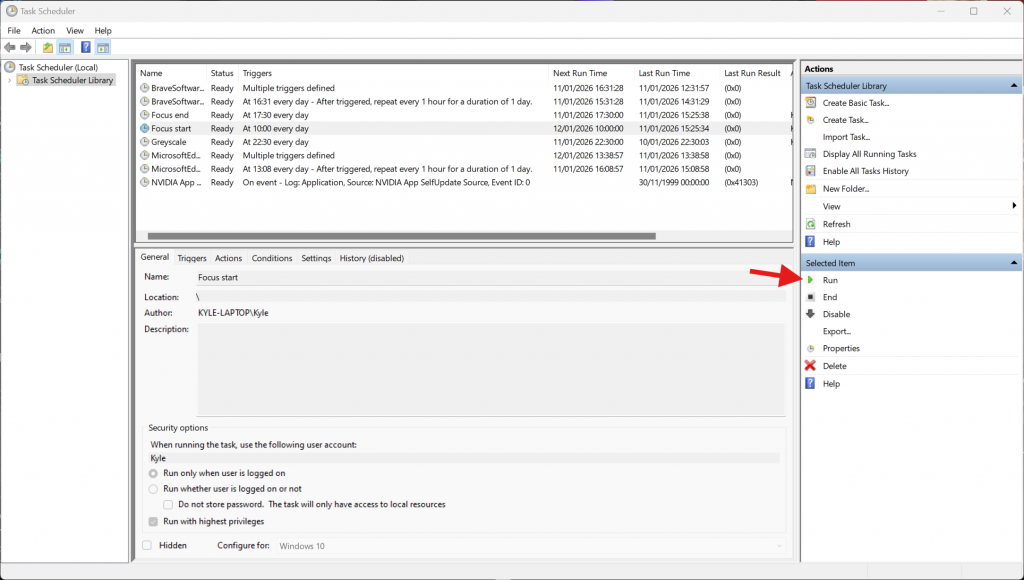
Just repeat the process for ending the focus period and that’s it!
Summary
This has proven to be a very effective solution at reducing distraction time and retraining my brain to do a little less dopamine hunting. The fact that it is automated is essential, I frequently forget I am even in focus mode until I go to YouTube and remember that it is not going to work. This kicks me out of my habits and allows a more constructive thought pattern to take over.